Thursday, December 6, 2007

Automating Outlook with Ruby: Saving File Attachments

A while back, we looked at accessing the Outlook Inbox and managing messages. A reader recently asked how to iterate over the messages and save file attachments to their hard drive. Specifically, they wanted to save only those file attachments that exceeded 500k in size.

In Outlook, a message (MailItem) object's file attachments are accessed via the Attachments collection:


message.Attachments.each do |attachment|
# Do something here
end

The Attachment object has few properties and methods, but one you will use is the FileName property, which returns the, uh, filename.

To save the attachment, call its SaveAsFile method, passing it a path and filename:

attachment.SaveAsFile("c:\\attachments\\#{attachment.FileName}")

The attachment object does not offer a method/property for determining the file size. If you were looking to save only files of a certain size, you could save the file, then check the saved file's size and delete it if necessary. This is not optimal, but it does the trick.

So, putting this all together, we'd have something like the following code which iterates over your Inbox messages and saves all attachments of 500,000 bytes or larger:

require 'win32ole'

outlook = WIN32OLE.new('Outlook.Application')
mapi = outlook.GetNameSpace('MAPI')
inbox = mapi.GetDefaultFolder(6)
inbox.Items.each do |message|
message.Attachments.each do |attachment|
filename = "c:\\attachments\\#{attachment.FileName}"
attachment.SaveAsFile(filename)
File.delete(filename) if File.size(filename) < 500000
end
end

That's our show for today. Questions? Comments? Suggestions? Post a comment here or send me an email.

Thanks for stopping by!

Digg my article

Sunday, December 2, 2007

The Ruby.NET Compiler: A Little Love

Amidst all the IronRuby hype, you could be forgiven if you didn't hear mention of the Ruby.NET Compiler. But if you use Ruby on Windows -- and you probably do if you're reading this blog -- you owe it to yourself to at least be aware of the work that Wayne Kelly and friends have been doing.

To quote the Ruby.NET page:

Ruby.NET is a compiler that translates Ruby source code into .NET intermediate code. This allows components implemented using the Ruby language to:

* Natively execute on the .NET platform
* Be linked with third party components developed using other .NET languages such as C#.
* Utilize the extensive resources of the .NET platform including visual design and debugging tools, the security framework and an extensive collection of class libraries used, for example, to create Windows forms, web and database applications.

Ruby.NET version 0.9 was released a couple weeks ago and can be installed via a binary installer from here. It requires the Microsoft .Net Framework version 2.0.

There's an optional Visual Studio integration package, which requires Visual Studio 2005 SDK version 4.0.

I've just started tinkering with this, so I can't provide any meaningful analysis or instruction on it yet. But I like the possibilities that it presents...

* Compile your code to a .Net executable
* Use the .NET framework's Forms library for your GUI
* Leverage the vast array of .NET framework libraries
* Work is currently underway to port the win32ole library to Ruby.NET

I'd like to see more documentation and examples, including Windows forms code samples. If you have Ruby.NET examples you would like to share, feel free to email them to me or post in the comments.

There's also a Ruby.NET Compiler Discussion group here.

So check it out and maybe, as Antonio Cangiano recommends, give Ruby.NET some love. I think this is a project that deserves much more attention.

Digg my article

Monday, November 12, 2007

Find & Replace with MS Word

While browsing through some DZone Ruby Snippets, I came across this nice little example of using Ruby to automate Find & Replace in Microsoft Word, compliments of Tim Morgan.

You could use such a snippet as part of a mail-merge type solution. To use it, create a form letter in a Word document, with bracketed placeholders where the actual values are to be inserted. Example:


Dear [name],

On [date] account [account_number] was charged a [amount] fee.

Let's take a walk through the code...

Load the win32ole library:

require 'win32ole'

Launch Microsoft Word:

word = WIN32OLE.new('Word.Application')

Open the template document:

doc = word.Documents.Open('c:\file_to_open.doc')

Iterate over a hash containing keys and values. Each key is the placeholder code and the corresponding value is the text to insert:

{
'name' => 'Tim Morgan',
'date' => Date.today.strftime('%B %d, %Y'),
'account_number' => '123456',
'amount' => '$45.76'
}.each do |key, value|

Start the search at the beginning of the document:

word.Selection.HomeKey(unit=6)

Grab a reference to the Find object:

find = word.Selection.Find

Set the Find object's text string (the hash key) to locate, surrounded by brackets:

find.Text = "[#{key}]"

For each occurrence of the string found (via the Find object's Execute method), insert the replacement text (the hash value):

while word.Selection.Find.Execute
word.Selection.TypeText(text=value)
end

Save the document with a new name:

doc.SaveAs('c:\output_file.doc')

Close the document:

doc.Close

The example above shows the hash hard-coded in the script, but you could build on this to load an array of hashes from a text or YAML file, Excel worksheet, or database table.

My thanks to Tim Morgan, who posted the original snippet on Dzone, and to you, for stopping by to read it!

Sunday, November 11, 2007

Getting Started with the wxRuby GUI Toolkit

Many readers have asked "What is the best GUI toolkit?". There is no single answer to this question, and I won't try to lobby for my GUI of choice. Use whatever works best for you and your users.

I use the wxRuby library. It's cross-platform, provides a native look-and-feel, and is easy to install (via a gem) and distribute with your application (via RubyScript2Exe). Further features can be found in the wxRuby wiki here. wxRuby is the Ruby interface to wxWidgets, a very stable and widely-used widget toolkit.

Installing wxRuby is simple using RubyGems:


gem install wxruby

Though you can use a GUI designer, creating most forms "by hand" is probably simpler than you suspect. A useful wxRuby user interface can be created in less than 50 lines of code, as we shall see...

Let's create a simple form with a label, text box, combo box, and button. We start by requiring the wx library and including the Wx namespace:

require 'wx'
include Wx

We create a new class which inherits from the Wx::Frame class and includes an initialize method:

class MyFrame < Frame
def initialize()
super(nil, -1, 'My Frame Title')
end
end

The Frame class' super constructor method takes the following arguments (all but Parent are optional):

Parent: The window parent. This may be NULL. If it is non-NULL, the frame will always be displayed on top of the parent window on Windows.

ID: The window identifier. It may take a value of -1 to indicate a default value.

Title: The caption to be displayed on the frame’s title bar.

Position: The window position. A value of (-1, -1) indicates a default position, chosen by either the windowing system or Widgets, depending on platform.

Size: The window size. A value of (-1, -1) indicates a default size, chosen by either the windowing system or Widgets, depending on platform.

Style: The window style (ie, if the minimize, maximize, and close boxes appear on the Frame).

Further details on the Frame class can be found in the wxRuby wiki here.

Next, let's add the code to the initialize method to create a panel, which will contain the other controls:

@my_panel = Panel.new(self)

The self passed to the new constructor is a reference to the Frame object, which we are passing as the parent of the Panel object.

Next, we'll create a variety of controls, passing the newly created @my_panel as the parent of each control:

@my_label = StaticText.new(@my_panel, -1, 'My Label Text',
DEFAULT_POSITION, DEFAULT_SIZE, ALIGN_CENTER)
@my_textbox = TextCtrl.new(@my_panel, -1, 'Default Textbox Value')
@my_combo = ComboBox.new(@my_panel, -1, 'Default Combo Text',
DEFAULT_POSITION, DEFAULT_SIZE, ['Item 1', 'Item 2', 'Item 3'])
@my_button = Button.new(@my_panel, -1, 'My Button Text')

I recommend assigning all your form controls to instance variables. This is the reason for the '@' preceding each control variable name.

We want to bind the button click to a "my_button_click" method which we will add to this class later. We do with the evt_button method:

evt_button(@my_button.get_id()) { |event| my_button_click(event)}

Now we'll proceed to the layout: arranging the controls in the Panel. We'll do this using a BoxSizer, which we'll have arrange the controls vertically:

@my_panel_sizer = BoxSizer.new(VERTICAL)
@my_panel.set_sizer(@my_panel_sizer)

Next we add each control to the panel's sizer by calling the sizer's add method:

@my_panel_sizer.add(@my_label, 0, GROW|ALL, 2)
@my_panel_sizer.add(@my_textbox, 0, GROW|ALL, 2)
@my_panel_sizer.add(@my_combo, 0, GROW|ALL, 2)
@my_panel_sizer.add(@my_button, 0, GROW|ALL, 2)

See the Sizer.Add documentation for an explanation of the various parameters.

Our last line of code in the initialize method makes the frame visible:

show()

Don't forget to add the my_button_click method that is called by the button click:

def my_button_click(event)
# Your code here
end

That concludes our MyFrame class. Now we want to create a MyApp class that will call our MyFrame class:

class MyApp < App
def on_init
MyFrame.new
end
end

Finally, we create a new instance of our MyApp class and call its main_loop method:

MyApp.new.main_loop()

View the complete code here.

There you have it. A complete, but simple, wxRuby form. It's not much to look at...
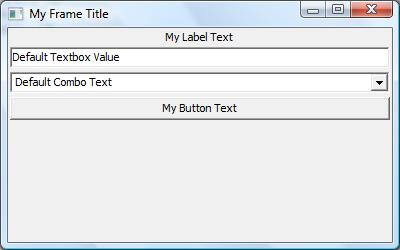


...but it demonstrates the basics and we'll enhance it shortly.

Soon, we'll cover related topics: dressing up our GUI a little, using the wxSugar extensions, using a Forms designer such as wxFormBuilder.

Questions? Comments? Suggestions? Post a comment here or send me an email message.

Thanks for stopping by!

Digg my article

Thursday, November 1, 2007

RubyConf 2007

I'll be attending my first RubyConf here in Charlotte this weekend and there's a lot of great stuff on the agenda. In addition, I learned from Bill Plummer that Microsoft is hosting an event Thursday night with John Lam talking about IronRuby. Unfortunately, I will have to miss it but I hope that John will duplicate the best parts of it in his RubyConf talk Saturday morning. Charlie Nutter follows that with his JRuby presentation. Of course, "Writing Client and Desktop Applications in Ruby" by Bruce Williams also caught my eye, as I am a desktop apps developer.

There's been a bit of a lull in my blog postings (and replies to readers) of late, as I've been swamped with work, but I plan to post more frequently going forward. I have a few topics suggested by readers, but welcome any comments, questions, or suggestions you may have. I still feel that Windows is Ruby's red-headed stepchild, with far more potential than the attention given to it. That may change (somewhat) in the future as projects such as IronRuby and the Ruby.Net compiler mature.

And if you're at RubyConf, stop by and say 'Hey!'

Sunday, October 21, 2007

Windows XP Visual Style Controls with wxRuby

wxRuby uses the native Microsoft Windows common controls when displaying widgets on a Windows OS. You may have noticed, however, that the form controls do not have the Windows XP look and feel. They have the flat and 2-dimensional look of earlier Windows versions...


...rather than having the rounded corners and 3-dimensional look of Windows XP...


Note, among other things, the "glowing button" effect when the mouse hovered over the "Get Films Data" button.

This is because Windows XP comes with both version 5 and version 6 of the Common Controls, but unless specifically instructed to use version 6, it will default to using version 5 controls.

So, how do you instruct Windows to use the version 6 controls for your wxRuby GUI application? By including a simple manifest XML file with your application.

Copy the following text into a new text file. Save the file as "rubyw.exe.manifest" in your ruby/bin folder, the same folder that contains rubyw.exe. You might also save a copy to the same folder as "ruby.exe.manifest".


<?xml version="1.0" encoding="UTF-8" standalone="yes"?>

<assembly xmlns="urn:schemas-microsoft-com:asm.v1" manifestVersion="1.0">
<assemblyIdentity version="1.8.6.0" processorArchitecture="X86"
name="Microsoft.Winweb.Ruby" type="win32"/>
<description>Ruby interpreter</description>
<dependency>
<dependentAssembly>
<assemblyIdentity
type="win32"
name="Microsoft.Windows.Common-Controls"
version="6.0.0.0"
processorArchitecture="X86"
publicKeyToken="6595b64144ccf1df"
language="*"
/>
</dependentAssembly>
</dependency>
</assembly>

When the ruby.exe or rubyw.exe interpreter is run, Windows will look for a manifest file matching the program name in the same folder. When it finds our manifest file, it will then use the version 6 controls, as defined in the <dependency> section of the manifest.

We place the file in our c:\ruby\bin directory because that is where ruby.exe and rubyw.exe are located. We name the file ruby.exe.manifest or rubyw.exe.manifest to match the name of the interpreter being run.

If you are compiling your application with RubyScript2Exe, copy the manifest file into the folder with your script, then embed the manifest file in your compiled executable using the RUBYSCRIPT2EXE.bin statement:

RUBYSCRIPT2EXE.bin = ["rubyw.exe.manifest"]

When your compiled executable is run, your manifest file will be extracted to the same temporary "/bin" folder as the rubw.exe (or ruby.exe) interpreter.

Questions? Comments? Suggestions? Post a comment here or send me email.

Thanks for stopping by!

Digg my article

Sunday, October 7, 2007

Hide & Seek: Using NTFS Alternate Data Streams

The NTFS file system utilized by Windows (NT and later) includes support for Alternate Data Streams (ADS). ADS was implemented in NTFS to provide compatibility with Apple's Macintosh Hierarchical File System (HFS), which uses resource forks to store icons and other information for a file, but such streams can be used to store any type of data that a normal file would store. You could, for example, use an ADS to store metadata about the file to which the ADS is attached. You could even store binary data inside an ADS. This might be useful for storing backup versions of a file before making changes.

To work with an alternate data stream for a file, simply append a colon and the stream name to the filename. The following code appends a stream named 'stream1' to file.txt:


open('file.txt:stream1', 'w') do |f|
f.puts('Your Text Here')
end

If file.txt did not exist, it would have been created and would be 0 bytes in size, since no data was written to the main stream. But you can append streams to an existing file, as well. The reported size of the file would not change, though it now includes alternate data streams of embedded data.

Reading from a stream is just as simple:

stream_text = open('file.txt:stream1').read

Alternate data streams can also be used for storing binary data, including executables:

bytes = open('MyApp.exe', 'rb').read
open('file.txt:MyApp.exe', 'wb') do |f|
f.write(bytes)
end

bytes = open('file.txt:MyApp.exe','rb').read
open('MyApp2.exe', 'wb') do |f|
f.write(data)
end

A file can contain multiple data streams, so you could, for example, include a data stream for text and another stream for binary data.

Another possible use for ADS would be to create a backup of the file which could be restored later:

def create_backup(filename)
open("#{filename}:backup", "wb") do |f|
f.write(open(filename, "rb").read)
end
end

def restore_backup(filename)
if not File.exist?("#{filename}:backup")
puts("Backup stream does not exist!")
return
end
backup = open("#{filename}:backup", "rb").read
open("#{filename}", "wb") do |f|
f.write(backup)
end
end

Note: A file's alternate data streams will be preserved on the NTFS disk, but would be stripped off of a file when copied to a non-NTFS disk, such as a flash drive or CD/DVD disk; or when a file is copied via ftp. For this reason you may not want to rely on alternate data streams for storing critical data.

There you have it. Sound interesting? Further details on Alternate Data Streams can be found here and here.

Thanks for stopping by!

Digg my article